Showing posts with label IDE. Show all posts
Showing posts with label IDE. Show all posts
Eclipse vs IntelliJ
Better ways to organize info - Winner: Eclipse
- Eclipse provides workspace, working set, projects
- Organizes views into perspectives, provides view like console, problems, errors.
- We always know where to find info we need.
Editor -Winner: Eclipse
Eclipse shows error/warning in current window in left side bar.
IntelliJ only shows error/warning for all content in right side bar. (Eclipse also shows things in right side bar)
When you write code, its much easier to check error/warning in Eclipse.
Shortcut keys -Winner: Eclipse
Eclipse's default shortcut is more natural to me: easier to remember and type. Usually Eclipse uses less keys. IntelliJ uses all keys F1-10.
To format code: Cmd+shift+f in eclipse Cmd+alt+l in IntelliJ
- what L means?
Quick fix - Winner: Eclipse
- Eclipse quick fix(ctrl+1) is too powerful, it can fix bugs, generate code based on current context.
- IntelliJ provides too many ways to do similar things - wtf?
Show intention actions - alt+enter
Basic code completion - ctrl+space
Smart type code completion - ctrl+shift+space
Debug
- Drop to frame always works in Eclipse, but doesn't in IntelliJ
- Display view in Eclipse stores history, it's much easier to use
IntelliJ does have its own advantages such as: smart step into for anonymous classes and lambdas.
Search everywhere in IntelliJ
In Eclipse, you have to use different shortcuts/ways to search type, resource, views.
In IntelliJ, just double press shift keys.
Better Performance/More Stable - Winner: IntelliJ
Sometimes Eclipse is slow or gets stuck, you need take time to customize it, check Improve Eclipse Performance
Same code may work in Eclipse but not in IntelliJ
Eclipse and IntelliJ doesn't works well together, if some team members are using eclipse, you better also use eclipse, as sometimes, the same code works and can be deployed in eclipse's tomcat but doesn't work or can't be deployed in IntelliJ tomcat.
More about Eclipse and IntelliJ:
Mastering Eclipse IDE - Tips, Tricks
IntelliJ IDEA Tips and Tricks

IntelliJ IDEA Tips and Tricks
Postfix Code Completion
some.var/if//try/twr/inst/throw/sout/
some.for/fori/forr/field/cast/null/nn
Shortcuts
Search Everywhere - Double-press Shift
Find action by name - command+shift+A
Show intention actions - alt+enter
Basic code completion - ctrl+space
Show type hierarchy - ctrl+h
Delete lines - Command+Delete
Move caret to text start/end - Command+fn+left/right
Move caret to line start/end - fn+left/right or command+left/right
Navigation - link
Command+E - Recent files
Command+shift+E - Recent edit files
Go to Line - Command+L
Show Javadoc - Ctrl+J
Go to last edit location - Command+Shift+Delete
Open Javadoc - F1
Alt+1 - open project view, Alt+5 - open debugger view
Add javadoc
- Typing /**
- Add shortcuts(Alt+Shift+J) to Fix doc comment
Class structure view (outline)
- Command+F12, Press Command +F12 again to show inherited methods
Format code - ctrl+alt+l
Organize import - ctrl+alt+O
Find in path = command+shift+F
Structure view - Command+7
Project View - Command+1
Increase font size (Zoom text)
Open Settings (Ctrl+Alt+S), search for "zoom", select Editor.
Select "Change font size (Zoom) with Ctrl+Mouse Wheel"
Live template - Command+J
main - generate main method
sout - just print System.out.println()
soutm - added Class name & method name
soutp - added parameter
soutv - added last variable name
soutf
serr
psf – public static final
psfi – public static final int
psfs – public static final String
ifn – Inserts if null statement
inn – Inserts "if not null" statement
inst – Checks object type with instanceof and down-casts it
geti - create singleton getInstance method
Create new template - sfl4j log
Preferences > Editor > Live Template
Switch between views - Alt+F1
Find class - Command+O
Find file by name - Command+Shift+O
Find/replace text string in the current file - Command+F/R
Find/replace text in the project or in the specified directory - Command+Shift+F/R
Expand or collapse a code fragment in the editor - Command(+)+/-
Code completion - Ctrl+Space
Smart completion - Cmd+Shift+Space
Refactor This - Ctrl+T
Coding
Surround with action - alt+command+T
Overwrite methods - ctrl+O
Implement methods - ctrl+I
Refactor
Rename - shift+F6
Code generator - Command+N
Copy reference -> Copy qualified name in eclipse
Debugging
Quick evaluate expression - Command+alt+F8
Smart step into - Shift+F7
Step into - F7
Step over - F8
Step out - Shift + F8
Stop program - Command+F2
Scala
Type declaration action - ctrl+shift+B
Type info action - ctrl+shift+P
New scala worksheet
Preferences - Command+,
Inspections
Intentions
Keymap
- Add shortcuts
Command+shift+W - Close all files in editors
Hide iml and idea files
Preferences > File > Settings > Editor > File Types and add ;*.iml;*.idea; at the end of the Ignore files and folders text box.
Configuration
Never use wildcard imports
Link with editor(eclipse)
Project view > gear icon > select Autoscroll from source
File -> Settings -> Editor -> General -> Show quick documentation on mouse move
Web Servers
Add -Xmx6g to vm options in server tab
IntelliJ problems view don't refresh itself when there is new compile error. Switch to other view then switch back.
IntelliJ show compile error at right side bar - unlike Eclipse which shows error/warnings in left side bar.
Configure > Project Defaults > Project Structure
-> Project tab -> Project SDK
When to Use IDEA
- Scala projects or projects that use SBT.
Trouble shooting
File | Invalidate Caches
Delete IDEA system directory
Messed up external libraries
Sometimes external libraries still keeps reference to old libraries that are not used any more, the workaround is to delete .idea/libraries internals and restart IntelliJ and reimport projects.
Resources
Meet IntelliJ IDEA
some.var/if//try/twr/inst/throw/sout/
some.for/fori/forr/field/cast/null/nn
Shortcuts
Search Everywhere - Double-press Shift
Find action by name - command+shift+A
Show intention actions - alt+enter
Basic code completion - ctrl+space
Show type hierarchy - ctrl+h
Delete lines - Command+Delete
Move caret to text start/end - Command+fn+left/right
Move caret to line start/end - fn+left/right or command+left/right
Navigation - link
Command+E - Recent files
Command+shift+E - Recent edit files
Go to Line - Command+L
Show Javadoc - Ctrl+J
Go to last edit location - Command+Shift+Delete
Open Javadoc - F1
Alt+1 - open project view, Alt+5 - open debugger view
Add javadoc
- Typing /**
- Add shortcuts(Alt+Shift+J) to Fix doc comment
Class structure view (outline)
- Command+F12, Press Command +F12 again to show inherited methods
Format code - ctrl+alt+l
Organize import - ctrl+alt+O
Find in path = command+shift+F
Structure view - Command+7
Project View - Command+1
Increase font size (Zoom text)
Open Settings (Ctrl+Alt+S), search for "zoom", select Editor.
Select "Change font size (Zoom) with Ctrl+Mouse Wheel"
Live template - Command+J
main - generate main method
sout - just print System.out.println()
soutm - added Class name & method name
soutp - added parameter
soutv - added last variable name
soutf
serr
psf – public static final
psfi – public static final int
psfs – public static final String
ifn – Inserts if null statement
inn – Inserts "if not null" statement
inst – Checks object type with instanceof and down-casts it
geti - create singleton getInstance method
Create new template - sfl4j log
Preferences > Editor > Live Template
Switch between views - Alt+F1
Find class - Command+O
Find file by name - Command+Shift+O
Find/replace text string in the current file - Command+F/R
Find/replace text in the project or in the specified directory - Command+Shift+F/R
Expand or collapse a code fragment in the editor - Command(+)+/-
Code completion - Ctrl+Space
Smart completion - Cmd+Shift+Space
Refactor This - Ctrl+T
Surround with action - alt+command+T
Overwrite methods - ctrl+O
Implement methods - ctrl+I
Refactor
Rename - shift+F6
Code generator - Command+N
Copy reference -> Copy qualified name in eclipse
Debugging
Quick evaluate expression - Command+alt+F8
Smart step into - Shift+F7
Step into - F7
Step over - F8
Step out - Shift + F8
Stop program - Command+F2
Scala
Type declaration action - ctrl+shift+B
Type info action - ctrl+shift+P
New scala worksheet
Preferences - Command+,
Inspections
Intentions
Keymap
- Add shortcuts
Command+shift+W - Close all files in editors
Hide iml and idea files
Preferences > File > Settings > Editor > File Types and add ;*.iml;*.idea; at the end of the Ignore files and folders text box.
Configuration
Never use wildcard imports
- Settings > Code Style > Java > Imports tab
- Set Class count to use import with '*' to a bigger value
- Set Names count to use static import with '*' to a bigger value
Link with editor(eclipse)
Project view > gear icon > select Autoscroll from source
File -> Settings -> Editor -> General -> Show quick documentation on mouse move
Web Servers
Add -Xmx6g to vm options in server tab
IntelliJ problems view don't refresh itself when there is new compile error. Switch to other view then switch back.
IntelliJ show compile error at right side bar - unlike Eclipse which shows error/warnings in left side bar.
Configure > Project Defaults > Project Structure
-> Project tab -> Project SDK
When to Use IDEA
- Scala projects or projects that use SBT.
Trouble shooting
File | Invalidate Caches
Delete IDEA system directory
Messed up external libraries
Sometimes external libraries still keeps reference to old libraries that are not used any more, the workaround is to delete .idea/libraries internals and restart IntelliJ and reimport projects.
Resources
Meet IntelliJ IDEA
Eclipse: Only Show Problems for Current Project
The Problem
By default, Eclipse Problem View shows errors and warnings for all projects. To boost our development productivity, we may only want it to show errors and warning for current project, especially when there are too many project.
The Solution
We can configure this in Eclipse Problem View like below:
 We can easily switch between show all errors, errors/warning in current project or only errors/warning in selection.
By default, Eclipse Problem View shows errors and warnings for all projects. To boost our development productivity, we may only want it to show errors and warning for current project, especially when there are too many project.
The Solution
We can configure this in Eclipse Problem View like below:
GAE: Java compiler level does not match the version of the installed Java project facet
The Problem
I am creating a new GAE(1.9.1) project today. There is no place to set JDK version during creating Google Web Application Project, and the default JRE in Eclipse is 1.6, and I don't want to change the default JRE to JDK 7 as most of our projects still uses Java 6.
So after creating the GAE project, I want to change GAE project to use JDK 7, so I can use new features in JDK 7.
I right click on the project -> Properties -> Java Build Path -> Libaries, remove JDK 6 runtime and add JDK 7 runtime, also in Java Compiler tab, change Complier compliance level to 1.7.
This will rebuild the project. After it's done, in eclipse Problems views, it shows error:
Java compiler level does not match the version of the installed Java project facet. HelloGAE Unknown Faceted Project Problem (Java Version Mismatch)
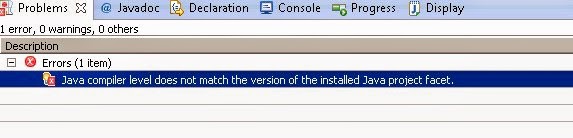 We can still write code, run this GAE project, but if there is syntax(commpiler level) error in our code, it will not show in the Problems view. This is kind of annoying.
The Solution
This is because when we create GAE project, it uses JDK 6, thus sets the Java Project Facet level to 1.6.
The value can alos be seen in .settings/org.eclipse.wst.common.project.facet.core.xml
The fix is to change Java Project Facet level to 1.7: right click on the GAE project -> Properties -> Project Facet, in the right panel, change the Java version to 1.7.
It will rebuild the project, now we can see the errors, warnings in Problems view.
Happy coding :)
I am creating a new GAE(1.9.1) project today. There is no place to set JDK version during creating Google Web Application Project, and the default JRE in Eclipse is 1.6, and I don't want to change the default JRE to JDK 7 as most of our projects still uses Java 6.
So after creating the GAE project, I want to change GAE project to use JDK 7, so I can use new features in JDK 7.
I right click on the project -> Properties -> Java Build Path -> Libaries, remove JDK 6 runtime and add JDK 7 runtime, also in Java Compiler tab, change Complier compliance level to 1.7.
This will rebuild the project. After it's done, in eclipse Problems views, it shows error:
Java compiler level does not match the version of the installed Java project facet. HelloGAE Unknown Faceted Project Problem (Java Version Mismatch)
The Solution
This is because when we create GAE project, it uses JDK 6, thus sets the Java Project Facet level to 1.6.
The value can alos be seen in .settings/org.eclipse.wst.common.project.facet.core.xml
The fix is to change Java Project Facet level to 1.7: right click on the GAE project -> Properties -> Project Facet, in the right panel, change the Java version to 1.7.
It will rebuild the project, now we can see the errors, warnings in Problems view.
Happy coding :)
Regular Expression in Action: Remove or Merge Empty Lines
The Problem
I like to copy the code to Eclipse or NetBeans to read it and run it when read some interesting code in internet. The code in the web is usually not well formatted: many empty lines. This makes it harder to read the code.
So I like to remove empty lines to make the code looks smaller and concise.
Here regex comes into play.
Remove Empty Lines
Find: ^\s*\n
Replace: (empty)
Merging Empty Lines
Find: ^\s*\n
Replace: \r\n or \n in windows
Next, use Ctrl+Shif+F in Eclipse or Alt+Shif+F in Netbeans to fromat the code.
Online Regex Tools
http://regex101.com/
Here it will explain the meaning of the regular expression, we can test it.
Here we can test our regualr expression in almost all languages, it can also give its java or .Net String, so we don't have to manually escape special chracters such as \ or " in the regex string.
I like to copy the code to Eclipse or NetBeans to read it and run it when read some interesting code in internet. The code in the web is usually not well formatted: many empty lines. This makes it harder to read the code.
So I like to remove empty lines to make the code looks smaller and concise.
Here regex comes into play.
Remove Empty Lines
Find: ^\s*\n
Replace: (empty)
Merging Empty Lines
Find: ^\s*\n
Replace: \r\n or \n in windows
Next, use Ctrl+Shif+F in Eclipse or Alt+Shif+F in Netbeans to fromat the code.
Online Regex Tools
http://regex101.com/
Here it will explain the meaning of the regular expression, we can test it.
- /^\s*\n/
- ^ assert position at start of the string
- \s* match any white space character [\r\n\t\f ]
- Quantifier: Between zero and unlimited times, as many times as possible, giving back as needed [greedy]
- \n matches a fine-feed (newline) character (ASCII 10)
Here we can test our regualr expression in almost all languages, it can also give its java or .Net String, so we don't have to manually escape special chracters such as \ or " in the regex string.
Subscribe to:
Posts (Atom)