Showing posts with label Eclipse. Show all posts

Eclipse vs IntelliJ


Better ways to organize info - Winner: Eclipse
-  Eclipse provides workspace, working set, projects
-  Organizes views into perspectives, provides view like console, problems, errors. 
- We always know where to find info we need.

Editor -Winner: Eclipse
Eclipse shows error/warning in current window in left side bar. 
IntelliJ only shows error/warning for all content in right side bar. (Eclipse also shows things in right side bar)
When you write code, its much easier to check error/warning in Eclipse.

Shortcut keys -Winner: Eclipse
Eclipse's default shortcut is more natural to me: easier to remember and type. Usually Eclipse uses less keys. IntelliJ uses all keys F1-10.

To format code: Cmd+shift+f in eclipse Cmd+alt+l in IntelliJ
- what L means?

Quick fix - Winner: Eclipse
- Eclipse quick fix(ctrl+1) is too powerful, it can fix bugs, generate code based on current context.
- IntelliJ provides too many ways to do similar things - wtf?
Show intention actions - alt+enter
Basic code completion - ctrl+space

Smart type code completion - ctrl+shift+space

Debug
- Drop to frame always works in Eclipse, but doesn't in IntelliJ
- Display view in Eclipse stores history, it's much easier to use

IntelliJ does have its own advantages such as: smart step into for anonymous classes and lambdas.

Search everywhere in IntelliJ
In Eclipse, you have to use different shortcuts/ways to search type, resource, views. 
In IntelliJ, just double press shift keys.

Better Performance/More Stable - Winner: IntelliJ
Sometimes Eclipse is slow or gets stuck, you need take time to customize it, check Improve Eclipse Performance


Same code may work in Eclipse but not in IntelliJ
Eclipse and IntelliJ doesn't works well together, if some team members are using eclipse, you better also use eclipse, as sometimes, the same code works and can be deployed in eclipse's tomcat but doesn't work or can't be deployed in IntelliJ tomcat.

More about Eclipse and IntelliJ:
Mastering Eclipse IDE - Tips, Tricks
IntelliJ IDEA Tips and Tricks

Eclipse: Add another Project as Dependency may Cause Unexpected Exception


The Problem
In local development, we run spring-boot application in eclipse tomcat - as we also deploy the project as a war.

But for some reason, one developer stills run it as a java application, and it fails with error - while it works well when run in (eclipse) tomcat.
Bean instantiation via factory method failed; nested exception is org.springframework.beans.BeanInstantiationException:
Failed to instantiate [com.amazonaws.services.s3.AmazonS3]: Factory method 's3Client' threw exception;
nested exception is java.lang.NoSuchMethodError: com.amazonaws.handlers.HandlerChainFactory.getGlobalHandlers()Ljava/util/List;

The Root Cause
Maven uses nearest wins strategy to determine which version to use, So we explicitly specify what version of aws-java-sdk-s3 to use in admin's pom.xml, but one library also implicitly depends on aws-java-sdk-s3 in common-module project. 

run mvn dependency:tree -Dverbose -Dincludes=com.amazonaws:aws-java-sdk-core, which shows that maven chooses the right version.
[INFO] |  \- com.amazonaws:aws-java-sdk-cloudfront:jar:1.11.32:compile
[INFO] |     \- (com.amazonaws:aws-java-sdk-core:jar:1.11.32:compile - omitted for conflict with 1.11.98)

- We can also get which version maven uses and why in eclipse: 
open pom,xml then go to dependency hierarchy tab , select the library in right panel.

I tried to run it as a java application, it works fine. But why it failed in his environment?

I compared the difference between his eclipse setup and mine, and found out that he manually added common-module in admin's Java Build Path -> Projects tab.

Now it's kind of clear why it failed: when we add a project as dependency, Eclipse also includes all libraries it depends on to the project. So now the project includes both versions, and Eclipse chooses the wrong version to use.

I created one bug Bug 514094 - Adding another Project as Dependency Causes Unexpected Exception to track it.

Eclipse - Run Code Clean Up Manually + Save Action


The Scenario
Eclipse shows compiler warnings in Problems view.
Some may be trivial such as unused import, but some may be more serious such as null access.

But if we don't fix trivial issues, there may be too many warnings in the project; This may cause us just ignore all these warnings, which can lead us ignore vital/important warnings and potential bugs.

So usually I don't like see any compile warning in current editor or the whole project - We can find this in Problems view.

How Eclipse can Help
First we can configure compiler at Preferences -> Java -> Compiler -> Errors/Warnings.

Save Action
We can configure Eclipse "Save Action" at Java -> Editor -> Save Action to auto format code, organize imports and a lot of things.
- We can also configure save action for Javascript and Scala or other langs.

But sometimes, when we only modify a few lines of the file, we don't want to change other parts otherwise when others review the change, it's difficult for them to figure out what changed.

So usually I only configure "Save Action" to format edited lines and organize imports.

We can also configure General -> Editors -> AutoSave to save dirty editors every X seconds.

Run Code Cleanup Manually
First we assign a shortcut key such as Ctrl+Alt+Command+C in Preferences(Command+,) -> Key
- We can also configure this for Javascript.

Then we configure what Code Clean Up does at Preferences -> Java -> Code Style -> Clean Up

It can do things(more than 20) such as format code, organize imports, add @Override, final,  serial ID, add unimplemented methods, remove trailing space, correct indentation and much more.

If I change most part of the current file, or I think it's necessary, I will click Ctrl+Alt+Command+C to tun Code Clean Up manually.

Eclipse: Be careful what class you import


In the following code, Eclipse shows warning in methodB: The type parameter T is hiding the type T.

private void methodA(final Map<String, T> map) {}
private <T> void methodB(final Map<String, T> map) {}

The root cause is that when write methodA, I made a mistake: I forgot to declare type variable.

As I configured Eclipse Save Action: it will automatically organize imports not declared classes;  in Map<String, T> map, the T is actually: org.apache.poi.ss.formula.functions.T, so methodA actually compiles.

In methodB, the T is actually type variable, so eclipse shows the warning: The type parameter T is hiding the type T.
This is configured in Preferences > Java > Compiler > Errors/Warnings > Type parameter hies another type > Choose Warning

Lesson Learned
During code review, don't ignore imports part.
Make sure what imports is actually we want.
Don't use T as type variables, use E, K, V etc.
Understand the generic syntax.

Mastering Eclipse IDE - Tips, Tricks


Quick Access(Command+3)
-- For example, to change a string to upper case or lower case, and you don't know the short cuts, then just select the text, type "upper" or "lower" in quick access text box.
-- Open specific view, preference, call specific command.

Shortcuts
Command+./Ctrl+.      Go to next error/warning
- We can configure which annotations to traverse by clicking on the dropdown: like adding Tasks.
Command+1/Ctrl+1    Quick fix
Alt + Shift + T            Opens the context-sensitive refactoring menu
Alt + Shift + Z     Surround block with try and catch - config first
Command +M            Maximizes the current view or editor
Command +Shift+/     Insert block comment
Alt+Shift + N             Shortcut for the menu to create new objects

Command+D              Delete current line
Command +E
Search dialog to select an editor from the currently open editors
Command+,               Open preference 

Quick fix:
Convert "" + "" to MessageFormat or StringBuilder.
Convert anonymous class creation to lambda expression and vice versa
Show spelling suggestions

Refactoring
Eclipse Refactor Actions
https://bmwieczorek.wordpress.com/2009/11/28/eclipse-refactoring/
Move static methods/fields to another class
-- Select them in outline view -> Refactor -> Move 
Change method signature
-- Add/remove/move parameters and give default value
Introduce Parameter Type
-- When there are too many parameters in method
Rename
- Press cmd+option+r twice or click options to open a dialog to also rename the getter and setter.

Configuration
Auto Save
General > Editors > Auto-save
Configure Eclipse Compiler Warnings
Enable null analysis, unbox conversion, missing default in switch etc
Leveraging JSR-305 null annotations to prevent NullPointerExceptions
Use @CheckForNull, @Nonnulls

Enable Save Action
Configure and Run Clean up
- We can configure eclipse to auto run clean up when save 
- We can also run Clean up manually via quick access or assign it a shortcut such as ctrl+alt+command+c

Code Recommender
toString() Generator: Code Styles - Use StringBuilder or Skip Null
Configure hashCode and equals to use blocks in "if" statement.

Static import
To help write test cases easier, when we type "assertT" and hit Ctrl+Space, we want Eclipse to add static import automatically for us: import static org.hamcrest.MatcherAssert.assertThat;
Window > Preferences > Java > Editor > Content Assist > Favorites, then add:
org.hamcrest.Matchers.*
org.hamcrest.CoreMatchers.*
org.mockito.Mock.*
org.mockito.Mockito.*

org.mockito.Matchers.*
org.junit.*
org.junit.Assert.*
org.junit.Assume.*
org.junit.matchers.JUnitMatchers.*

JDK8:
java.util.stream.Collectors.*

com.jayway.restassured.RestAssured.* -> if use restAssured.

Transform static invocation to a static import - cmd(ctrl)-shift-M

Code Template
Use Template view to learn shortcuts
static_final, test, instanceof, lazy, lock, systrace, 
.var .null, .nnull

Debugging
Use Display view to execute (any) code in current context
CTRL+U (execute) or CTRL+SHIFT+I (inspect)

Launch Group
Group related debug/remote applications together.
Example - local solr remote debug

Force Return in Display view
Use conditional breakpoint to execute any code without stopping

Force Eclipse to throw exception in display view
Execute: {throw new AnyKindOfException();}

Navigation
Drop to Frame
Run to line(Ctrl+R)
Smart Step into selection -> Ctrl + Alt + Click
-- To step into a single method within a series of chained or nested method calls.
Detail Formatter in Variables View
Change preferences of detail formatters:
- So eclipse will show toStirng value directly in value field for variables like StringBuilder, Map etc.
Show variable details (toString() value) to one of the following:
As the labels for all variables
As the labels for all variables with detail formatters

SolrQuery : Url Decode
java.net.URLDecoder.decode(this.toString())
Date : Show utc time
java.text.SimpleDateFormat sdf = new java.text.SimpleDateFormat("yyyy-MM-dd'T'HH:mm:ss.SSS'Z'", java.util.Locale.ROOT);
sdf.setTimeZone(java.util.TimeZone.getTimeZone("UTC"));
sdf.format(this);
new java.text.SimpleDateFormat("yyyy-MM-dd'T'HH:mm:ss").format(this)

Common Preference Settings
Remove java exception breakpoints
-- Go to Java>Debug, Uncheck "suspend on uncaught exception"

Improve Eclipse Performance
http://www.slideshare.net/kthoms/boosting-the-performance-of-your-eclipse-ide-eclipsecon-france-2016
Disable autobuild
- Uncheck 'Build Automatically'
- Eclipse auto build before launching the app(or tomcat): Pref > Run/Debug > Launching

Uninstall not-needed plugins such as mylyn at Help -> Installation Details
Close Unwanted Projects
eclipse.ini
-server
-Xms1g
-Xmx8g
-Xverify:none -> disable class verification

Show heap status at General
General -> Appearance
Disable theming
Disable Animations

Disable all plugins at General -> Startup and Shutdown
Disable unnecessary Validators -> Suspend all
Disable unnecessary Label Decorations

Click on Team -> Disconnect on project
- If you use git command

Maven:
Disable download repository index on startup
User interface: open xml page in the pom editor by default

Exclude workspace folder from Spotlight Index
System Preferences -> Spotlight -> Privacy tab, add folder to exclude from index
Exclude workspace from anti-virus

Find huge files
du -h -d 1 .metadata/.plugins | gsort -h
.m2/repository/.cache/m2e
metadata/.plugins/org.eclipse.m2e.core

Cleanup Metadata
.metadata/.plugins/org.eclipse.wst.server.core
.metadata/.plugins/org.eclipse.jdt.core

Search local history
grep -R -i yourQuery .metadata/.plugins/org.eclipse.core.resources/.history

Uncheck Re-open Remote Systems view in "Remote system".

JUnit - UnCheck Show Failures Only

Run Tests Across Multiple Projects
https://github.com/takari/takari-cpsuite
Create a maven project depending on all the projects you want to test.
pom.xml:
<dependencies>
  <dependency>
    <groupId>junit</groupId>
    <artifactId>junit</artifactId>
    <version>4.12</version>
  </dependency>
  <dependency>
    <groupId>io.takari.junit</groupId>
    <artifactId>takari-cpsuite</artifactId>
    <version>1.2.7</version>
  </dependency>
</dependencies>
Create Test code:
import org.junit.extensions.cpsuite.ClasspathSuite;
import org.junit.runner.RunWith;
@RunWith(ClasspathSuite.class)
public class TestRunner {
}

Effective Search
Filtering Call Hierarchy
- Filters: 
   exclude test classes: *.Test*, *.*Test, *.*TestCase, *.*TestBase
- Search in option to exclude application/jre libraries
- Field Access: Read or write access

Using Regular Expression
When we highlight words we want to search for, then Ctrl+H, the search dialog will contains the word we select.

If previously we selected "Regular Expression", Eclipse will automatically create the regex for us.

Press Ctrl+Space for content assist when write regex in search box.

Find empty lines: ^\s*\n
We can show file in terminal or package explorer in "Open Resource" dialog.

Show file in terminal or system explorer in package explorer view.

Eclipse Console View
We can open multiple consoles by "Open Console",  and pin it by "Pin Console", move them to different locations.

Click "Display selected console" button to switch console.
If don't want to open or switch console when there is update:
- Deselect "Show console when standard out changes" and "Show console when standard error changes"

Autosave for dirty editors
Preferences > General > Editors > Auto-save

Hot deploy
Eclipse supports limited hot deploy function: we can change the method implementation, but not add new classes/methods.

We can use dcevm and HotswapAgent for true hot deploy - check the link for how to setup them.
- Match the java build version and dcevm version: light-jdk8u112-8 works with Java 8u112.

Add -XXaltjvm=dcevm -javaagent:~/hotswap-agent-1.0.jar to tomcat VM arguments.

Plugins
MoreUnit
Ctrl+U: create test method

Ctrl+J:  jump to test method
Eclipse Grep Console
Using Eclipse Console plugin to show different colors for warning, error in console
ERROR:      (^(ERROR|SEVERE):)|Exception|(^\s+at)
Warning:      ^WARNING:

Spell Check
Eclipse default spell checker can detect spelling error in java doc, and plain text file.
Go to Window > Preferences > General > Editors > Text Editors > Spelling, to enable/disable or change the settings.

To detect spelling error in names of interfaces, classes, methods, constants, use jdt-spelling

We can use quick fix(cmd+1) to fix spelling error or add word to dictionary.

Misc
Enable "Link With Editor" in Package Explorer/Project Explorer/Navigator/Breakpoints
Use Working Sets to group different projects.

Linking an external folder to Eclipse

Turn off code formatter for certain sections of java code
Go to Preferences>Java>Code Style>Formatter.
Click on Edit, go to Off/On Tags, select Enable Off/On tags.
// @formatter:off
...
// @formatter:on

Determining who last modified a line with the Annotate command
Team > Show Annotation

Name template during project import
When need import maven projects multiple times into the same workspace,  in the advanced section, specify the name template like [artifactId]-something-here, so each project will have a different suffix.

Prevent line wrapping in XML and HTML files
Use: <![CDATA[ ]]>

Block Selection Mode
Use Ctrl+3 and type "block"
Mac:         Command+Option+A
Window:  Alt+Shift+A

Open multiple eclipse instances/workspaces
In Mac: open -n Eclipse.app
Or use OS X Eclipse Launcher

Other Plugins
Easy-shell
Open folder in explorer or command line.

Troubleshooting
Kill hang stopped tomcat process in Eclipse
Sometimes, when we stop tomcat, it may hang 
- it becomes gray square Cancel Requested.
(sometimes lsof -i :8080 shows nothing, but the tomcat process is still there) We can use command line like jps to find the tomcat process, and kill it. 

Find logs at yourWS/.metadata/.log

How to remove eclipse error "A cycle was detected in the build path of the project"
You can go to Preferences -> Java -> Compiler -> Building and change the Error to Warning.

Eclipse.ini


Misc
Docking a detached view
Click on the tab (not on the title of detached tab window) and drag


Troubsle shooting - Eclipse Tomcat Deploy Stops Working


The Problem
Sometimes, Eclipse Tomcat plugin fails to work: your web app is not deployed.

Check List
Try Server -> Clean
If not work, try Project -> Clean
Check Eclipse Problems View, make sure there is no build path issue that stops Eclipse from compiling.

Check Tomcat Depoyment folder:
- Check whether tomcat plugin copied your web apps to this folder:
INFO: Command line argument: -Dcatalina.base=/Users/USERNAME/ws/YOUR_WS/.metadata/.plugins/org.eclipse.wst.server.core/tmp1
Feb 12, 2016 11:50:29 AM org.apache.catalina.startup.VersionLoggerListener log
INFO: Command line argument: -Dcatalina.home=/Users/USERNAME/src/apache/tomcat/apache-tomcat-8.0.21
Feb 12, 2016 11:50:29 AM org.apache.catalina.startup.VersionLoggerListener log
INFO: Command line argument: -Dwtp.deploy=/Users/USERNAME/ws/snei-qos/.metadata/.plugins/org.eclipse.wst.server.core/tmp1/wtpwebapps

Make sure classes are in WEB-INF/classes folder. 
--
Feb 12, 2016 11:50:43 AM org.apache.catalina.core.ApplicationContext log
INFO: No Spring WebApplicationInitializer types detected on classpath

Root cause - Eclipse "Build Automatically" was unchecked somehow at some time, so tomcat does copy the web apps folder in target to tomcat deployment folder, but no classes in  WEB-INF/classes there.

Misc:
Use Grep Console to Colorize logs in eclipse console

Jackson Generic Type + Java Type Erasure


The problem
We are save configuration elements to Dynamodb: the key is the configuration name, the value is the JSON string.
Recently I am trying to refactor the code to make the service code much shorter and easier to read. But I made one mistake - related with Java Type erasure.

The following code tries to read configuration: its value is a Map. I want to create one generic method that can read different Map.
  @Nonnull
  private <T> Map<String, T> getMapConfig(final String configName) {
      final ConfigElement c = configDao.getConfigByName(configName);

      Map<String, T> resultMap = null;
      if (c != null) {
          String json = c.getValue();
          resultMap = objectMapper.readValue(json, new TypeReference<Map<String, T>>() {});
      }
      if (resultMap == null) {
          resultMap = new HashMap<>();
      }
      return resultMap;
  }

  private <T> T convertMapValue(final String json) {
      return objectMapper.readValue(json, new TypeReference<T>(){});
  }
But this doesn't work: because of type erasure, T is just a type variable, at runtime, Java can't get the real value of the type.

The Solution
We have to specify class type like below:
  @Nonnull
  private <T> Map<String, T> getMapConfig(final String configName, final Class<T> classType) {
      final ConfigElement c = configDao.getConfigByName(configName);

      Map<String, T> resultMap = null;
      if (c != null) {
          String json = c.getValue();
          final MapType mapType = TypeFactory.defaultInstance().constructMapType(Map.class, String.class, classType);            
          resultMap = objectMapper.readValue(json, mapType);
      }
      if (resultMap == null) {
          resultMap = new HashMap<>();
      }
      return resultMap;
  }
  private <T> T convertMapValue(final String json,final Class<T> valueType) {
      return objectMapper.readValue(json, valueType);
  }
One related stuff I found is that in eclipse you can change Eclipse's Warning settings so that if Eclipse will show warnings if some parameter are not used: Change -> Window/Preferences /Java/Compiler/ErrorsWarnings -> Unnecessary Code > Value of parameter is not used to warning.

Read More
Jackson Essentials - the JSON Libaray
Using Jackson JSON View to Protect Mass Assignment Vulnerabilities
Merge JSON Objects: Jackson + BeanUtils.copyProperties
Jackson Generic Type + Java Type Erasure
Jackson Date Serialize + Deserialize
Apache Commons TypeLiteral
Google Guice TypeLiteral
Effects of Type Erasure and Bridge Methods

Eclipse: Breakpoint in AspectJ Ignored


The Problem
Breakpoint in Aspect class in Eclipse doesn't work.

The Solution
For better performance, by default, AspectJ compiler inlines aspect code into methods. This makes the breakpoints in Aspect classes not work.

To fix it, we can install Eclipse AspectJ Development Tools (AJDT).
It can visualize how aspects were affecting classes in a project.

Then Right CLick project --> Properties -> AspectJ Compiler -> Possible Optimizations: Select noinline.

Java: Using classmexer MemoryUtil to Get Object Deep Memory


The Problem
In some case, we may want to get the deep memory usage of one object.
For example, in recent project, I developed one Solr request handler which will copy docs from remote solr to local solr.

The request looks like this: /solr/core/pulldocs?remoteSolr=solrurl&q=query&fl=fields&rows=ROWS&start=START
Internally, it will get 100 docs each time: first get START to START+100 then get START+100 to START+200 - there are actually 5 threads to pull docs and insert to local solr at same time.

But in one test environment, the tester reports that the get 100-docs request gets slower and slower. I am guessing it's not the case, but because some 100 docs are abnormal and huge.

So I need to find it out and prove it: I want to print each request execution time and the size of solr response from remote solr server.

Solution: Use classmexer MemoryUtil to Get Deep Memory Usage
So, how to get deep memory usage of java object
Via google search, I found we can use Java Instrumentation to get object size(Instrumentation.getObjectSize), but which just gives the shallow size of object.

Then I found MemoryUtil from classmexer which can get deep memory usage of object.
MemoryUtil.deepMemoryUsageOf(object)

Integrate classmexer MemoryUtil to Web Application
In order to use MemoryUtil in our Solr application, I add the -javaagent:C:\mysolrapp\extra\classmexer.jar to the Java startup parameter.

Then change the code like below:
QueryResponse rsp = solrServer.query(fetchQuery);
logger.info("start: " + fetchQuery.getStart() + ", deep size: "
  + MemoryUtil.deepMemoryUsageOf(rsp));
Copy the new built class to WEB-INF/classes, restart server and rerun the test. From the log, I can easily find the huge solr response from remote solr like below:
INFO: start: 4000, deep size: 714, 778, 104 ==> 700mb approximately, in normal case, it should between 1 and 10 mb.
INFO: Added 100, start: 4000, took 1195796

Then clean data, rerun test with start=4000&rows=100

Check the solr index, the size of solr index is more than 5 g, use Luke to analyze the Solr index, and found 99.99% is content field, which has more than 41 million terms.

The real root cause is in the server side, when server extracts text from file, if the file is corrupted, it will get the binary data and add it into content field which is huge. We fixed the server side code issue, and everything works fine.

Eclipse Debugging Tips: Find which jar containing the class and the application is using


The problem:
Today I am adding Solr Cell(Tika) to our Solr application, during test, it throws the following exception:
Caused by: java.lang.NoSuchMethodError: org.apache.tika.mime.MediaType.set([Lorg/apache/tika/mime/MediaType;)Ljava/util/Set;
        at org.apache.tika.parser.crypto.Pkcs7Parser.getSupportedTypes(Pkcs7Parser.java:52)
        at org.apache.tika.parser.CompositeParser.getParsers(CompositeParser.java:81)

This looks like there is a conflicting tika-core jar.
I used the java decompiler JD-GUI to check the jars I added: solr\contrib\extraction\lib\tika-core-1.3.jar, the class MediaType does contain this method: set(MediaType[] types).

Then it seems there are some other jars containing the MediaType class, I checked solr.war\WEB-INF\lib, but no obvious hint.

Using Eclipse Display View to Check which jar Contains the Class
I enabled the remote debug, added a breakpoint at Pkcs7Parser.getSupportedTypes(Pkcs7Parser.java:52), reran the Solr Cell request, it hit and stops at Pkcs7Parser.getSupportedTypes(Pkcs7Parser.java:52).
java.security.CodeSource src = org.apache.tika.mime.MediaType.class.getProtectionDomain().getCodeSource();
return src.getLocation();
The output:
(java.net.URL) file:omitted/webapps/server/WEB-INF/lib/crawler4j-dependency.jar

Check crawler4j-dependency.ja, so now the root cause is obvious.
The culprit is that some one added crawler4j into the Solr application and put its all dependencies into crawler4j-dependency.jar. It uses tika-core-1.0.jar, the MediaType classes doesn't contain the method: set(MediaType[] types).

We can use following code to return all methods in MediaType:
java.lang.reflect.Method[] methods = org.apache.tika.mime.MediaType.class.getMethods();
return methods;

The Problem - Breakpoint doesn't work
When we step through classes from some jars in Eclipse, we may find that the code doesn't match or breakpoint doesn't work at all.

This usually means there are multiple versions of same class or library in your application, the one java uses is not same as the Eclipse loads to debug. 
you can check what java is using by - this.getClass()/(XClass.class).getProtectionDomain().getCodeSource().getLocation()

You can check what jar Eclipse is loading in package view - if "Link with Editor" is enabled.

References
Uploading Data with Solr Cell using Apache Tika
Solr ExtractingRequestHandler

Using Fiddler and Eclipse to Trouble Shooting: The entity name must immediately follow the '&'


The Problem
One client application sent data to our custom Solr Handler, it failed with the following exception:

The entity name must immediately follow the '&' in the entity reference.org.xml.sax.SAXParseException; lineNumber: 1; columnNumber: 70; The entity name must immediately follow the '&' in the entity reference.
at com.sun.org.apache.xerces.internal.parsers.DOMParser.parse(DOMParser.java:256)
at com.sun.org.apache.xerces.internal.jaxp.DocumentBuilderImpl.parse(DocumentBuilderImpl.java:345)
at javax.xml.parsers.DocumentBuilder.parse(DocumentBuilder.java:121)
at XXX.ExtendUpdateRequestHandler.handleRequestBody(ExtendUpdateRequestHandler.java:200)
at org.apache.solr.handler.RequestHandlerBase.handleRequest(RequestHandlerBase.java:135)
at org.apache.solr.core.SolrCore.execute(SolrCore.java:1821)
Use Fiddler to Capture Request and Replay in development Machine
It seems that it's caused by the invalid character in XML. But as client application put everything in CDATA, why this problem still happened?

To figure out the real cause and the fix, we sat together and reproduced the problem: we used fiddler to capture the request client application sent: the request looks like below:
Content-Type: application/x-www-form-urlencoded
stream.body=<![CDATA[2033\Test%25%26!@Test_]]><![CDATA[2033\Test%25%26!@Test_]]>

Now I can reproduce the problem in my development machine: 
click on the captured request, select Replay -> Reissue from Composer, then change the url to my local development machine.
Using Eclipse Display View to Print the Complete Stack Trace
Look at the code, com.sun.org.apache.xerces.internal.parsers.DOMParser.parse, seems it suppress the underlying exception:
public void parse(InputSource inputSource)  throws SAXException, IOException
{
  try
  {
    parse(xmlInputSource);
  }
  catch (XMLParseException e)
  {
    Exception ex = e.getException();
    if (ex == null)
    {
      LocatorImpl locatorImpl = new LocatorImpl();
      locatorImpl.setPublicId(e.getPublicId());
      locatorImpl.setSystemId(e.getExpandedSystemId());
      locatorImpl.setLineNumber(e.getLineNumber());
      locatorImpl.setColumnNumber(e.getColumnNumber());
      throw new SAXParseException(e.getMessage(), locatorImpl); // throws exception from here
    }
  }
}
I would like to view the complete stack trace.


So I attached remote debug, added a breakpoint before the throw exception. Replay the request in the Composer, it stops at the breakpoint.

Go to Eclipse Display view, type the following java code in Display view, select all lines and execute them.
java.io.Writer result = new java.io.StringWriter();
java.io.PrintWriter printWriter = new java.io.PrintWriter(result);
e.printStackTrace(printWriter);
result.toString();
It prints the exception stack in Display view:
(java.lang.String) ::::1:616:615:The entity name must immediately follow the '&' in the entity reference.
at com.sun.org.apache.xerces.internal.impl.XMLErrorReporter.reportError(XMLErrorReporter.java:417)
at com.sun.org.apache.xerces.internal.impl.XMLScanner.scanAttributeValue(XMLScanner.java:837)
at com.sun.org.apache.xerces.internal.impl.XMLDocumentFragmentScannerImpl.scanAttribute(XMLDocumentFragmentScannerImpl.java:1551)
at com.sun.org.apache.xerces.internal.impl.XMLDocumentFragmentScannerImpl.scanStartElement(XMLDocumentFragmentScannerImpl.java:1324)
at com.sun.org.apache.xerces.internal.impl.XMLDocumentFragmentScannerImpl$FragmentContentDriver.next(XMLDocumentFragmentScannerImpl.java:2768)
at com.sun.org.apache.xerces.internal.impl.XMLDocumentScannerImpl.next(XMLDocumentScannerImpl.java:606)
at com.sun.org.apache.xerces.internal.impl.XMLDocumentFragmentScannerImpl.scanDocument(XMLDocumentFragmentScannerImpl.java:511)
at com.sun.org.apache.xerces.internal.parsers.XML11Configuration.parse(XML11Configuration.java:846)
at com.sun.org.apache.xerces.internal.parsers.XML11Configuration.parse(XML11Configuration.java:775)
at com.sun.org.apache.xerces.internal.parsers.XMLParser.parse(XMLParser.java:123)
at com.sun.org.apache.xerces.internal.parsers.DOMParser.parse(DOMParser.java:242)
at com.sun.org.apache.xerces.internal.jaxp.DocumentBuilderImpl.parse(DocumentBuilderImpl.java:345)
at javax.xml.parsers.DocumentBuilder.parse(DocumentBuilder.java:121)
at XXX.ExtendUpdateRequestHandler.handleRequestBody(ExtendUpdateRequestHandler.java:200)

at org.apache.solr.servlet.SolrDispatchFilter.execute(SolrDispatchFilter.java:762)

The root cause is much clearer now, the exception is caused by & in attribute. Now check the post data, we put element value in CDATA, but not attribute value.

The Solution
Actually we can't put use CDATA in attribute value, we have to convert these special set of characters to its entity name:
http://xml.silmaril.ie/specials.html

As we are using urlencoded-from to post data, we have to also url encoded the converted string.

Now, change the post data:
The origin data is: 2033\Test&!@Test, change xml special characters then url encode it, the final result is as below:
2033%5CTest%26amp%3B!%40Test

stream.body=<![CDATA[2033\Test%25%26!@Test_]]><![CDATA[2033\Test%25%26!@Test_]]>

Send the new urlencoded-post data in Fiddler Composer. 

Great, it works. 
Happy Debugging.

Eclipse: Escape Text when Pasting into a String Literal


The Problem
I have to copy some multil-line text and save it into a String variable. 
Unfortunately, Java doesn't support heredoc or Multi-line String literals.

So if to do this manually, I have to add \r\n at the end of each line, and escape special characters such as ", \ etc.

To do this manually would be quite boring and time wasting.

The Solution
Luckily, Eclipse has a nice and less unknown feature which will escape text for us when pasting text into a string literal.

In Eclipse, go to Preferences > Java > Editor > Typing, check the last option: "Escape text when pasting into a string literal", now when we paste text into a string literal, Eclipse will add \r\n, and escape special characters for us. Is it good, right?

After I pasted the text, Eclipse converted and escaped the string  like below:
private static final String FORMAT_NEW_TYPE ="   <typeDescription>\r\n" + 
"    <name>%s</name>\r\n" + 
"    <description />\r\n" + 
"    <supertypeName>uima.tcas.Annotation</supertypeName>\r\n" + 
"    <features>\r\n" + 
"     <featureDescription>\r\n" + 
"      <name>confidence</name>\r\n" + 
"      <description />\r\n" + 
"      <rangeTypeName>uima.cas.Float</rangeTypeName>\r\n" + 
"     </featureDescription>\r\n" + 
"    </features>\r\n" + 
"   </typeDescription>";

Eclipse: Only Show Problems for Current Project


The Problem
By default, Eclipse Problem View shows errors and warnings for all projects. To boost our development productivity, we may only want it to show errors and warning for current project, especially when there are too many project.

The Solution
We can configure this in Eclipse Problem View like below:

We can easily switch between show all errors, errors/warning in current project or only errors/warning in selection.

GAE: Java compiler level does not match the version of the installed Java project facet


The Problem
I am creating a new GAE(1.9.1) project today. There is no place to set JDK version during creating Google Web Application Project, and the default JRE in Eclipse is 1.6, and I don't want to change the default JRE to JDK 7 as most of our projects still uses Java 6.

So after creating the GAE project, I want to change GAE project to use JDK 7, so I can use new features in JDK 7.
I right click on the project -> Properties -> Java Build Path -> Libaries, remove JDK 6 runtime and add JDK 7 runtime, also in Java Compiler tab, change Complier compliance level to 1.7.

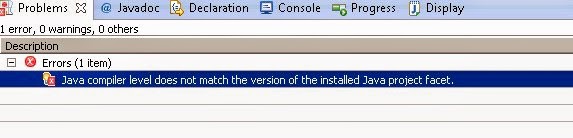
This will rebuild the project. After it's done, in eclipse Problems views, it shows error:
Java compiler level does not match the version of the installed Java project facet. HelloGAE Unknown Faceted Project Problem (Java Version Mismatch)

We can still write code, run this GAE project, but if there is syntax(commpiler level) error in our code, it will not show in the Problems view. This is kind of annoying.
The Solution
This is because when we create GAE project, it uses JDK 6, thus sets the Java Project Facet level to 1.6.
The value can alos be seen in .settings/org.eclipse.wst.common.project.facet.core.xml

The fix is to change Java Project Facet level to 1.7: right click on the GAE project -> Properties -> Project Facet, in the right panel, change the Java version to 1.7.

It will rebuild the project, now we can see the errors, warnings in Problems view.

Happy coding :)

Customizing Eclipse Project Names With maven-eclipse-plugin


The Problem
When learning Apache UIMA, I need to import it into eclipse. Also I need swtich between different UIMA version 2.4.2 and the latest(trunk) version frequently.

I can use maven-eclipse-plugin to import uima projects to eclipse. But I have to add a prefix to these uima projects.

The Solution
Check maven-eclipse-plugin, it provides several ways to change eclipse project name.
addGroupIdToProjectName
If set to true, the groupId of the artifact is appended to the name of the generated Eclipse project.
Expression: ${eclipse.addGroupIdToProjectName}

addVersionToProjectName
If set to true, the version number of the artifact is appended to the name of the generated Eclipse project. See projectNameTemplate for other options.
Expression: ${eclipse.addVersionToProjectName}

projectNameTemplate
Allows configuring the name of the eclipse projects. This property ifn set wins over addVersionToProjectName and addGroupIdToProjectName You can use [groupId], [artifactId] and [version] variables. eg. [groupId].[artifactId]-[version]
Expression: ${eclipse.projectNameTemplate}

So now the solution is obvious, we can add -Declipse.addVersionToProjectName=true
mvn -Declipse.addVersionToProjectName=true eclipse:eclipse
The project name would be updated as uimaj-core-2.4.2 or uimaj-core-2.5.1.


Or we can add -Declipse.projectNameTemplate=Prefix-[artifactId]-[version] 

Miscs
Use -DdownloadSources=true to tell maven to download source code.

Resource
Maven Eclipse Plugin
Get source jar files attached to Eclipse for Maven-managed dependencies

Regular Expression in Action: Remove or Merge Empty Lines


The Problem
I like to copy the code to Eclipse or NetBeans to read it and run it when read some interesting code in internet. The code in the web is usually not well formatted: many empty lines. This makes it harder to read the code.
So I like to remove empty lines  to make the code looks smaller and concise.

Here regex comes into play.

Remove Empty Lines

Find: ^\s*\n
Replace: (empty)

Merging Empty Lines
Find: ^\s*\n
Replace: \r\n or \n in windows 

Next, use Ctrl+Shif+F in Eclipse or Alt+Shif+F in Netbeans to fromat the code.

Online Regex Tools
http://regex101.com/
Here it will explain the meaning of the regular expression, we can test it.
  • /^\s*\n/
    • ^ assert position at start of the string
    • \s* match any white space character [\r\n\t\f ]
      • Quantifier: Between zero and unlimited times, as many times as possible, giving back as needed [greedy]
    • \n matches a fine-feed (newline) character (ASCII 10)
http://www.regexplanet.com/
Here we can test our regualr expression in almost all languages, it can also give its java or .Net String, so we don't have to manually escape special chracters such as \ or " in the regex string.

Changing Eclipse Console Encoding to Output Unicode Characters


The Problem
Eclipse default encoding is Cp1252, This will cause Eclipse output non-English characters as question marks(?) or some weird characters in the console.

Change Encoding Globally
If we want to change the text encoding globally, we can open Window -> Preferences -> General -> Workspace. Change the Text file encoding from default Cp1252 to UTF-8.


Or we can change file.encoding in eclipse.ini by adding:-Dfile.encoding=UTF-8, then restart Eclipse.

Change Encoding per Application
If we just want to change console encoding for one application, open Run As –> Run Configurations, click the Common tab, change the encoding from default to UTF-8.

Test Code
The following test code will get default file encoding, and print chines words: 大家好.
public void testDefaultEncoding() throws UnsupportedEncodingException {
    System.out.println(System.getProperty("file.encoding"));
    PrintStream sysout = new PrintStream(System.out, true, "UTF-8");
    //print 大家好
    sysout.println("\u5927\u5bb6\u597d");
} 
Change log4j encoding
log4j.appender.stdout=org.apache.log4j.ConsoleAppender
log4j.appender.stdout.encoding=UTF-8

Resources
Interactive native2ascii
native2ascii - Native-to-ASCII Converter

Labels

ANT (6) Algorithm (69) Algorithm Series (35) Android (7) Big Data (7) Blogger (14) Bugs (6) Cache (5) Chrome (19) Code Example (29) Code Quality (7) Coding Skills (5) Database (7) Debug (16) Design (5) Dev Tips (63) Eclipse (32) Git (5) Google (33) Guava (7) How to (9) Http Client (8) IDE (7) Interview (88) J2EE (13) J2SE (49) JSON (7) Java (186) JavaScript (27) Learning code (9) Lesson Learned (6) Linux (26) Lucene-Solr (112) Mac (10) Maven (8) Network (9) Nutch2 (18) Performance (9) PowerShell (11) Problem Solving (11) Programmer Skills (6) Scala (6) Security (9) Soft Skills (38) Spring (22) System Design (11) Testing (7) Text Mining (14) Tips (17) Tools (24) Troubleshooting (29) UIMA (9) Web Development (19) Windows (21) adsense (5) bat (8) regex (5) xml (5)