Showing posts with label Android. Show all posts
Showing posts with label Android. Show all posts
Android Studio: No classes.dex in built apk
The Problem: The apk does not include classes.dex
Recently, when I deploy my simple Android application to emulator in Android Studio, it always fails with error: Failure [INSTALL_FAILED_DEXOPT]
Check the logcat log: it shows: "The apk does not include classes.dex".
05-13 16:10:23.740 394-417/system_process W/ActivityManager﹕ No content provider found for permission revoke:
05-13 16:10:29.150 1055-1055/? W/dalvikvm﹕ DexOptZ: zip archive '/data/app/org.lifelongprogrammer.tools.myapp-1.apk' does not include classes.dex
05-13 16:10:29.160 53-53/? W/installd﹕ DexInv: --- END '/data/app/org.lifelongprogrammer.tools.myapp-1.apk' --- status=0xff00, process failed
I checked the built apk file at\app\build\apk, there is indeed no classes.dex in the apk file.
Google searched, but didn't didn't solution.
The Workaround: Build the app manually in command line
So I tried to use gradlew.bat to build the app manully: "gradlew.bat clean assembleDebug" then check the built apk file at\app\build\ap, it is larger, and indeed include classes.dex.
In Android studio, deploy the app to the emulator, it works. Also deploy it to my Android phone, it also works.
I think the problem should be in Android studio. But anyway I can continue to develop my application :)
Recently, when I deploy my simple Android application to emulator in Android Studio, it always fails with error: Failure [INSTALL_FAILED_DEXOPT]
Check the logcat log: it shows: "The apk does not include classes.dex".
05-13 16:10:23.740 394-417/system_process W/ActivityManager﹕ No content provider found for permission revoke:
05-13 16:10:29.150 1055-1055/? W/dalvikvm﹕ DexOptZ: zip archive '/data/app/org.lifelongprogrammer.tools.myapp-1.apk' does not include classes.dex
05-13 16:10:29.160 53-53/? W/installd﹕ DexInv: --- END '/data/app/org.lifelongprogrammer.tools.myapp-1.apk' --- status=0xff00, process failed
I checked the built apk file at
Google searched, but didn't didn't solution.
The Workaround: Build the app manually in command line
So I tried to use gradlew.bat to build the app manully: "gradlew.bat clean assembleDebug" then check the built apk file at
In Android studio, deploy the app to the emulator, it works. Also deploy it to my Android phone, it also works.
I think the problem should be in Android studio. But anyway I can continue to develop my application :)

Viewing Android Source Code from Android Studio
The Problem
When learning Android development, we may want to check Android source code once in a while.
When we click on a method of Android class, we may not see its source code like below:
android.os.Message.recycle
public void recycle() { /* compiled code */ }
The Solution
Install Android SDK Source Code in SDK Manager
Go to Tools -> Android -> SDK Manager.
In the Android SDK Manager panel, go to the Android SDK Version: 4.4.2(API 19) in this case, select "Source for Android SDK", this will download Android source code to android-studio\sdk\sources\android-19.
We can also select "Samples for SDK", "Documents dor Android SDK". Then click "Install packages...", select "Accept Licenese" in next dialogue, and click install.
 Wait until the install operation complete.
Attach Android SDK Source Code to Sourcepath
Go to File -> Other Settings -> Default Project Structure...
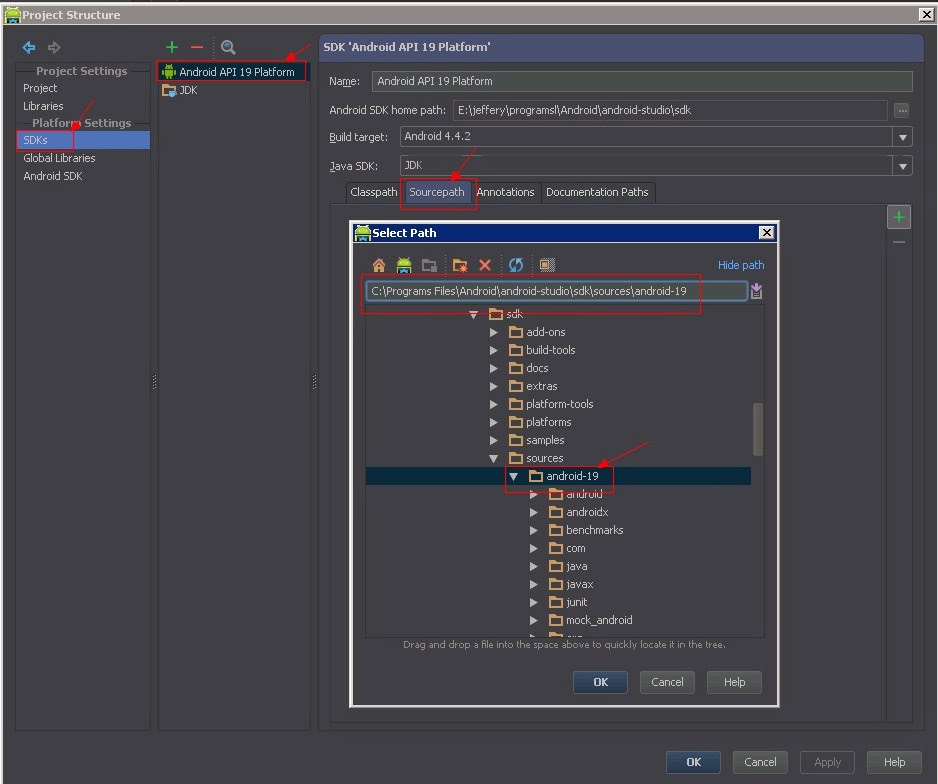
Select SDKs, in the middle panel, select the Android version(API 19 in this case), in the right panel, click the "Sourcepath" tab, click + button, then browse to your SKD path: C:\Programs Files\Android\android-studio\sdk\sources\android-19, then click OK.
 Verify
Now use Ctrl+N to open class android.os.Message, click Ctrl+F12, then type recycle, press enter, this will navigate to recycle method.
Now you can see the source code and javadoc of Android source code.
When learning Android development, we may want to check Android source code once in a while.
When we click on a method of Android class, we may not see its source code like below:
android.os.Message.recycle
public void recycle() { /* compiled code */ }
The Solution
Install Android SDK Source Code in SDK Manager
Go to Tools -> Android -> SDK Manager.
In the Android SDK Manager panel, go to the Android SDK Version: 4.4.2(API 19) in this case, select "Source for Android SDK", this will download Android source code to android-studio\sdk\sources\android-19.
We can also select "Samples for SDK", "Documents dor Android SDK". Then click "Install packages...", select "Accept Licenese" in next dialogue, and click install.
Attach Android SDK Source Code to Sourcepath
Go to File -> Other Settings -> Default Project Structure...
Select SDKs, in the middle panel, select the Android version(API 19 in this case), in the right panel, click the "Sourcepath" tab, click + button, then browse to your SKD path: C:\Programs Files\Android\android-studio\sdk\sources\android-19, then click OK.
Now use Ctrl+N to open class android.os.Message, click Ctrl+F12, then type recycle, press enter, this will navigate to recycle method.
Now you can see the source code and javadoc of Android source code.
/**
* Return a Message instance to the global pool.  You MUST NOT touch
* the Message after calling this function -- it has effectively been
* freed.
*/
public void recycle() {
 clearForRecycle();
  synchronized (sPoolSync) {
 if (sPoolSize < MAX_POOL_SIZE) {
  next = sPool;
  sPool = this;
  sPoolSize++;
 }
}
}
Using Save to Google Drive & Google Cloud Print Effectively
Today it's very common that we save or print some web pages, save some pdf/ppt links directly to Google Drive, so we can access them everywhere.
Save to Google Drive Plugin
We can install Google's Save to Google Drive plugin.
Then if we want to save the page we are browsing as a PDF to Google Drive, click the "Save to Google Drive" button.
If we want to save content of a link to GDrive, right click it, then select "Save Link to Google Drive" menu.
It allows to rename the file to give the file an meaningful name.
Google Cloud Print
Google Cloud Print is integrated with Chrome in desktop version. It allows us to print to local printers, send print jobs from virtually anywhere to a connected printer in any other location or send print jobs to phones or tablets.
It can also allow us to send print jobs to Google drive, the file will be saved as PDF.
When we enter Ctrl+P, Chrome will open Print dialog in current page. Click the change button in Destination section, and select "Save to Google Drive". We can change the layout as Portrait or Landscape.

We can click Save button on the top.
If we want to change the file name, we have to click "Print using Google Drive dialog". In the Google Cloud print dialog, select "Save to Google Drive", in next page, give the file an meaningful name.
 Mobile
In android phone/tablets, we can install the Google Drive and Google CLoud Print apps, then use Android's "Share" function to save to GDrive.
or send print jobs.
Save to Google Drive Plugin
We can install Google's Save to Google Drive plugin.
Then if we want to save the page we are browsing as a PDF to Google Drive, click the "Save to Google Drive" button.
If we want to save content of a link to GDrive, right click it, then select "Save Link to Google Drive" menu.
It allows to rename the file to give the file an meaningful name.
Google Cloud Print
Google Cloud Print is integrated with Chrome in desktop version. It allows us to print to local printers, send print jobs from virtually anywhere to a connected printer in any other location or send print jobs to phones or tablets.
It can also allow us to send print jobs to Google drive, the file will be saved as PDF.
When we enter Ctrl+P, Chrome will open Print dialog in current page. Click the change button in Destination section, and select "Save to Google Drive". We can change the layout as Portrait or Landscape.

We can click Save button on the top.
If we want to change the file name, we have to click "Print using Google Drive dialog". In the Google Cloud print dialog, select "Save to Google Drive", in next page, give the file an meaningful name.

In android phone/tablets, we can install the Google Drive and Google CLoud Print apps, then use Android's "Share" function to save to GDrive.
or send print jobs.
Subscribe to:
Posts (Atom)